App Setup
Tutorial
Get Live Metal Bulk Price Updater running on your Shopify store in minutes, without any Shopify metafield configurations.
▶ Video Setup Guide
Watch the full setup video to see exactly how to install and configure the Live Metal Bulk Price Updater.
1 Installation
Find Live Metal Bulk Price Updater via our Shopify App Store listing and click "Install".
You'll be redirected through Shopify's secure OAuth flow. Approve the permissions: read_products and write_products. The app needs these to securely read your catalog and push calculated prices to your specific product variants.
That's it. You're in. No manual setup, no API keys to enter. Your 7-day free trial starts automatically — no credit card entry required.
2 Dashboard & Metal Prices
The moment the app loads, it fetches live gold, silver, and platinum prices from the reliable eBullion API automatically. These refresh every 24 hours on a schedule, or you can hit Refresh manually.
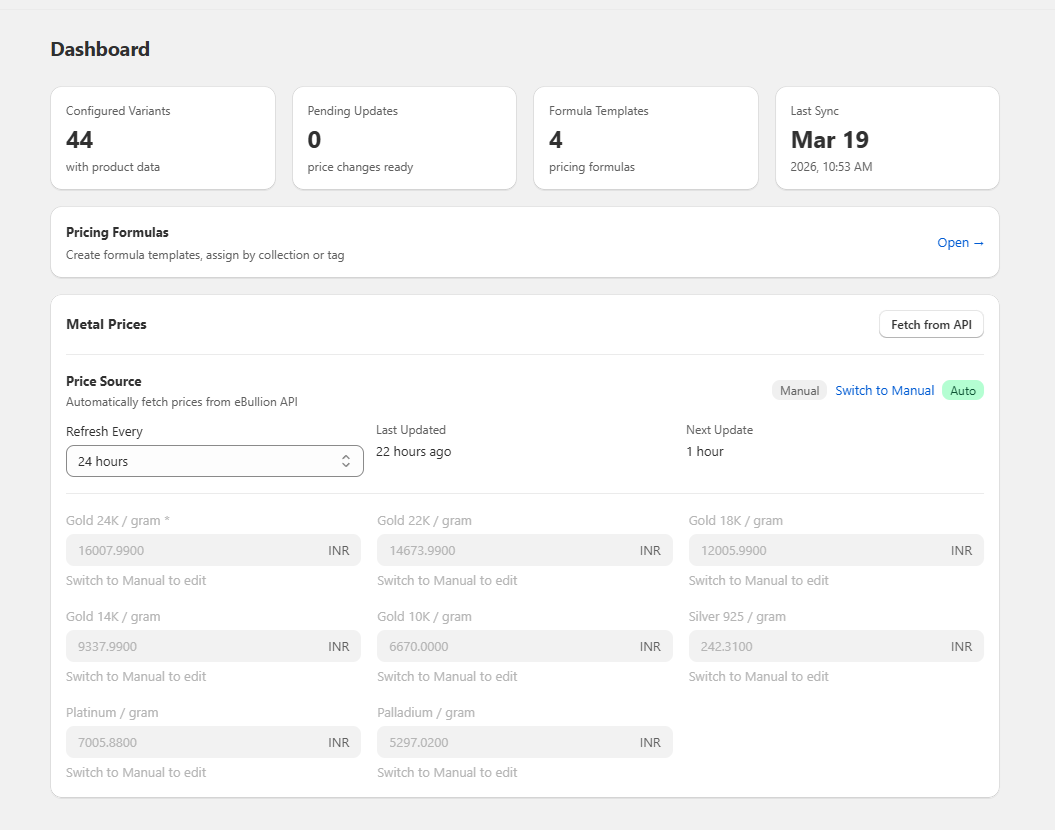
Each metal can be set to AUTO mode — pulling from the live API — or MANUAL mode, where you lock in a specific price temporarily by typing it yourself.
When metal prices change, the app automatically detects which product variants are affected and surfaces them in a pending changes banner.
Define your safety Stop-loss floors (the minimum acceptable price per gram). If the live market crashes below your material cost — say 5,000 rupees per gram — the app uses the floor in all calculations instead of the live price. Your margins are protected.
3 Creating a Pricing Formula
Navigate to Formulas → New Formula to dictate exactly how your jewelry prices emerge.
Step 1 — Define your variables: These are custom inputs that change per product variant — things like metal_weight, purity, and making_charge.
Construct the expression: The app provides system variables like gold24kPricePerGram and silverPricePerGram automatically based on live rates. Combine them with your custom variables. The live preview updates in real time as you type.
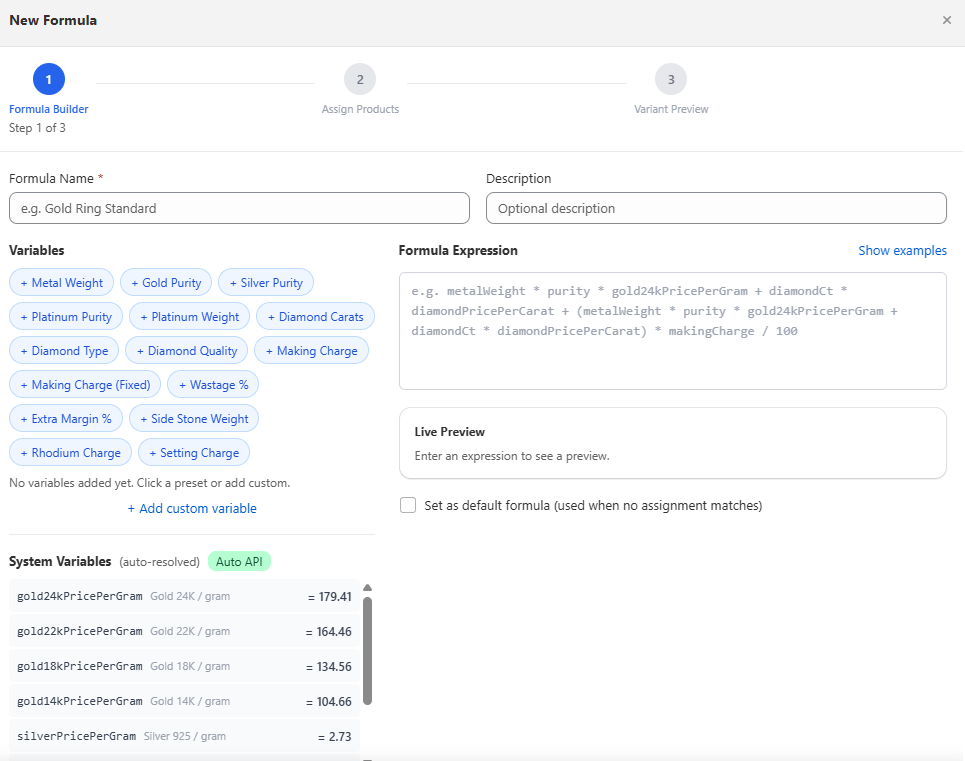
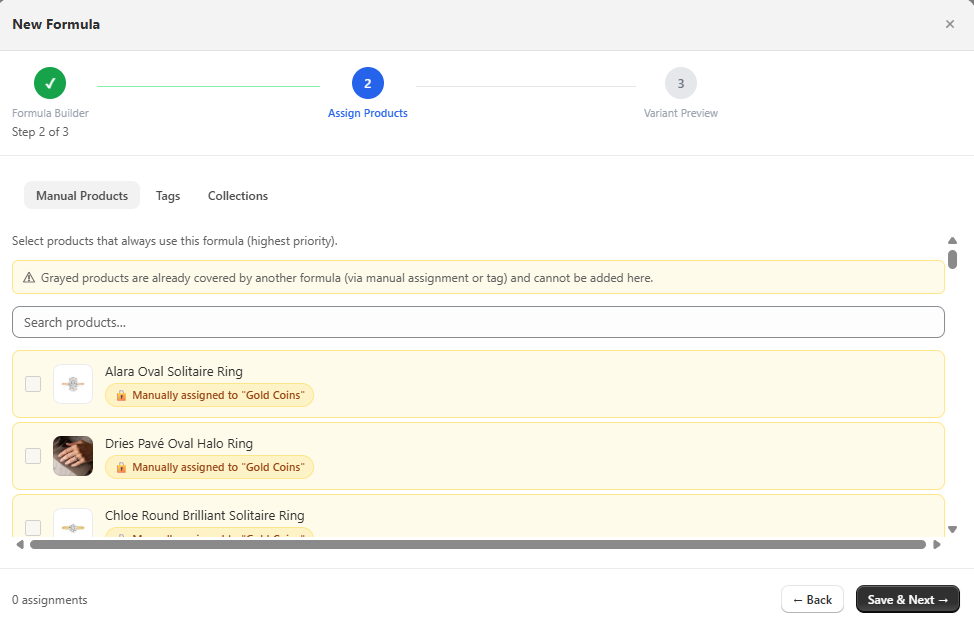
metal_weight * purity * gold24kPricePerGram + making_chargeStep 2 — Assign to products: Assign this formula directly to Target Collections (e.g. "Gold Jewellery"), exact Tags, or specific manual products so there's zero overlap.
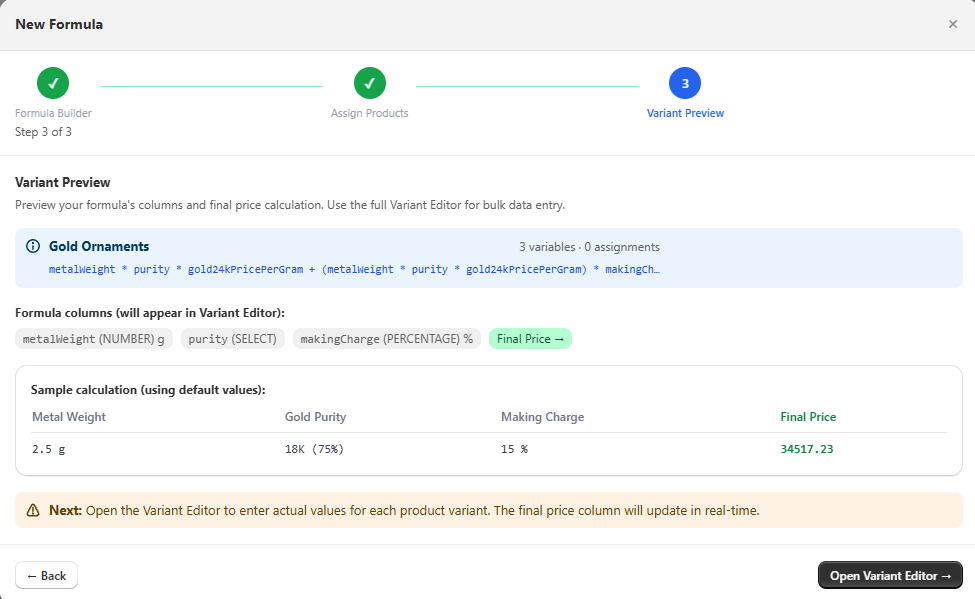
Step 3 — Preview: The app shows you exactly which products matched and how the formula looks with example data. Click "Open Variant Editor" to proceed.
4 Using the Variant Editor
You don't need any complex Shopify metafield setup. The app comes equipped with a dedicated and rapid internal Variant Editor table.
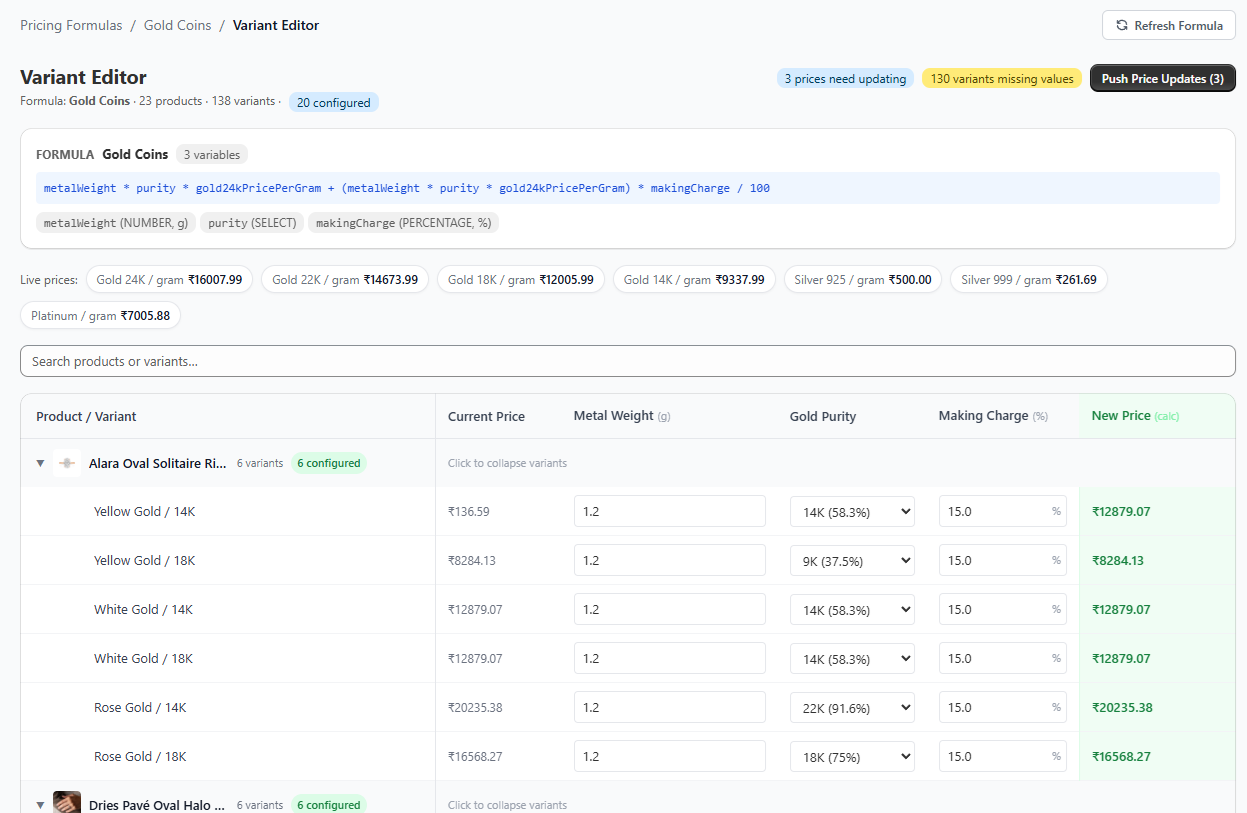
The Variant Editor displays every single variant inside your assigned products. Each row has dedicated columns for the custom variables you just defined (metal_weight, purity, making_charge).
As you actively fill in values across the rows (e.g., weight 2, purity 0.75, charge 500), the New Price column calculates instantly using the live formula.
Rows with missing values immediately show a warning badge and are automatically excluded from the push. A helpful price strip anchored at the top always reminds you what live metal rates are currently active!
5 Reviewing & Syncing Prices
Back on the Dashboard — when metal prices update overnight, the app detects the price drift and shows pending changes automatically.
Launch the "Review & Sync" interface to see exactly which variants are changing and by how much, before anything is pushed.
A modal opens showing your product list with a full breakdown — old price, new price, and the specific reason for the change.
Approve the list, and the optimized Shopify GraphQL bulk update runs immediately, finishing in seconds.
6 General Settings Reference
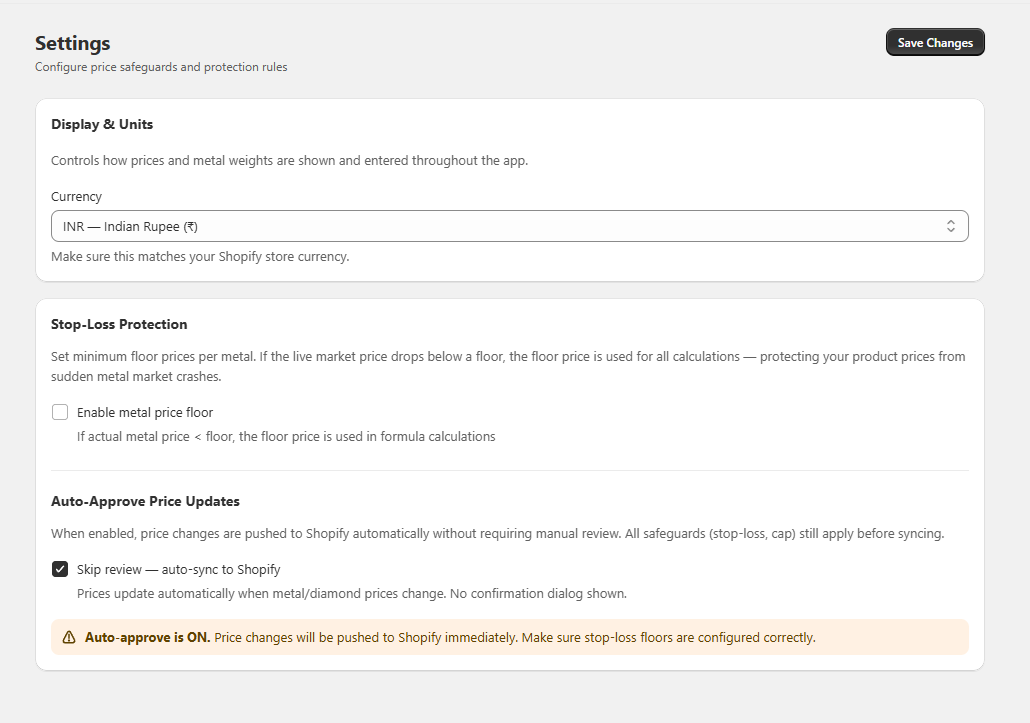
| Setting Param | Behavior |
|---|---|
| Currency & Units | Set your display currency and cleanly switch between metric Grams and Troy Ounces. |
| Auto-Approve | When enabled, price updates are pushed to Shopify automatically whenever metal prices change. No manual review needed. Enable this once you fully trust your formulas. |
| Market Volatility Smoothing | A 7-day average baseline ensuring minor hourly dips don't continually scramble your retail prices wildly. |
| Max Price Decrease Cap | Limits how much a variant price can drop in a single sync run. Useful if you want gradual adjustments rather than sudden drops preventing accidental catastrophic discounts. |
7 Getting Help
Direct priority email mapping: contact@klyx.agency — guaranteed support handling inside a sweeping 24h operational window.
The FAQ knowledge hub — swift self-service answers pertaining directly to calculation logistics, complex limits, and recurring billing factors.