Setting Up Mix & Match Bundles in Bundler: A 5-Minute Walkthrough
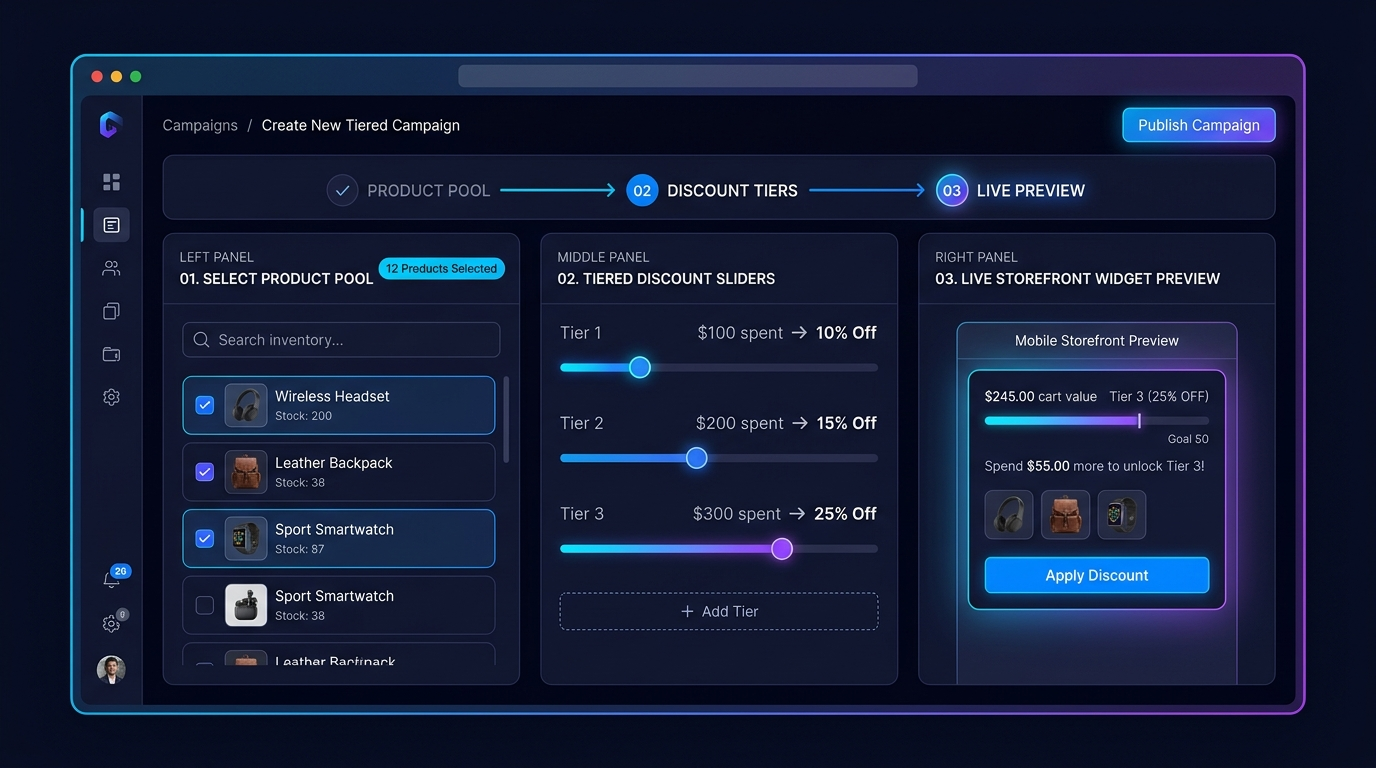
In the Bundler dashboard, create a new Mix & Match offer and select the collection or product tags that are eligible — this is the pool customers choose from, so keep it to products that genuinely make sense bundled together (e.g. all socks, not socks and furniture).
Define quantity tiers — pick 3 items, get 10% off; pick 5, get 15% off. Each tier calculates server-side through Shopify Functions the moment the cart hits that quantity, so there's no theme code to maintain and no discount code for the customer to remember.
Enable the Bundler theme app extension block on the relevant collection or product page through the theme editor — no Liquid editing required. The widget renders the live picker and updates the discount in real time as customers add items.
KLYX Bundler is free during early access — no credit card, no trial, no catch.
Install App Free →
More at klyx.agency/Bundler.